

- 1 First things first: what does “unlock an iPhone” actually mean?
- 2 Unlocking an iPhone in everyday use
- 3 Forgotten passcode: what really happens
- 4 Using the old passcode within 72 hours
- 5 Resetting the iPhone with a computer
- 6 Activation Lock: the case that stops everything
- 7 Unlocking an iPhone to change carrier
- 8 Locked SIM, PIN code, and PUK code
- 9 What you should not do
- 10 FAQ
- 11 Final thoughts
First things first: what does “unlock an iPhone” actually mean?
When people search for “how to unlock an iPhone”, they often mix several different problems into one. That is understandable: Apple uses different layers of locking, and they do not all work the same way.
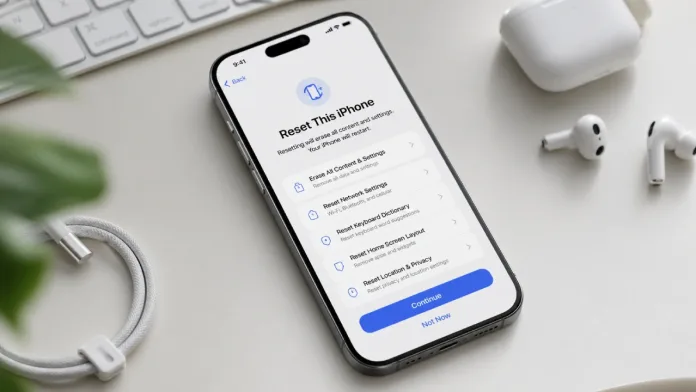
There is the everyday case: unlocking your iPhone normally with Face ID, Touch ID, or the passcode. Then there is the more annoying situation: forgotten passcode, disabled iPhone, or the “iPhone Unavailable” message. In that case, you are no longer just “getting back in”. Most of the time, the device has to be erased before it can be set up again. Apple states clearly that if you forget your passcode, you need to reset the iPhone to regain access, and this removes the data stored on the device.
Then there is another scenario: Activation Lock, which often appears after buying a second-hand iPhone or after a reset. This lock is tied to the Apple Account linked to the device. There is no serious magic trick to bypass it: you need the credentials of the account used to set up the iPhone, or you must go through Apple’s official procedures.
The last case is completely different: unlocking an iPhone so it can be used with another carrier. Here we are talking about network unlocking, not the screen passcode. Apple makes this clear too: only the current carrier can unlock the iPhone for use on another network.
Unlocking an iPhone in everyday use
In normal use, an iPhone can be unlocked in three ways: Face ID, Touch ID, or passcode. On recent models with Face ID, you wake the screen, look at the iPhone, then swipe up from the bottom of the display. On models with Touch ID, unlocking happens through the Home button and the registered fingerprint. You can also unlock the iPhone by entering the passcode after swiping up or pressing the Home button.
This detail matters: Face ID and Touch ID never fully replace the passcode. They make unlocking faster, but iOS still asks for the passcode in certain situations, such as after restarting the device. It can be annoying when you have forgotten the code at the worst possible moment, but it is also a key part of iPhone security.
The passcode remains the main key. Apple recommends stronger options, such as a custom alphanumeric code or a custom numeric code. Personally, I think the 4-digit code feels a bit outdated now. It is convenient, sure, but on a device that holds photos, emails, banking apps, private notes, and sometimes work accounts, that convenience comes with a price.
Forgotten passcode: what really happens
This is the most searched scenario, and also the one where honesty matters most: you cannot simply “recover” a forgotten iPhone passcode like you would recover a website password. The passcode protects the device locally. If there were an easy button to bypass it, it would not be much of a security feature.
If the iPhone displays “iPhone Unavailable” or “Security Lockout”, Apple provides a reset procedure. On iOS 17 or later, when the option appears, you can tap Forgot Passcode? and start the device reset process. This requires an active Wi-Fi or cellular connection and also depends on Find My having been enabled beforehand.
Once the iPhone is erased, it restarts like a device ready to be configured again. This is where an iCloud backup or a local backup becomes priceless. Without a backup, any data that was not synced or copied elsewhere is gone. It feels harsh, but this is exactly what prevents someone from stealing an iPhone and extracting its content with a shady trick found online.
Using the old passcode within 72 hours
There is one very useful feature in recent versions of iOS: if the passcode was changed recently and the new one has already vanished from memory, the old passcode can save the day. Apple explains that Passcode Reset lets you use the previous passcode for 72 hours after changing it, on iOS 17, iPadOS 17, and later.
The process is fairly simple: after several failed attempts, the “iPhone Unavailable” screen appears, and the Forgot Passcode? option may let you enter the previous passcode. If it works, the iPhone immediately asks you to create a new passcode.
This is probably one of Apple’s most practical additions for forgetful users, parents who change a child’s code too quickly, or anyone who decides to “make the passcode more secure” and regrets it five minutes later. It is not a loophole. It is a controlled recovery window.
Resetting the iPhone with a computer
When reset from the lock screen is not available, the computer method remains. You need a Mac or Windows PC, a compatible cable, an internet connection, and a bit of patience. Apple says the process can take up to 60 minutes.
The principle is always the same: turn off the iPhone, put it into recovery mode, connect it to the computer, then restore it. On Mac, this is done through Finder or the Apple Devices app, depending on the system version. On Windows, you use iTunes or the Apple Devices app, depending on your setup.
This method does not “unlock” the forgotten passcode in the strict sense. It erases the iPhone, reinstalls the system, and lets you start fresh. That distinction matters. Tools that promise to unlock an iPhone without data loss, without credentials, and without conditions should be treated with real caution. At best, they will do nothing more than a restore. At worst, they will sell false hope to someone who is already stressed.
Activation Lock: the case that stops everything
Activation Lock is a different story. It often appears after a restore or when a second-hand iPhone has not been properly removed from the previous owner’s Apple Account.
To remove this lock directly on the device, Apple asks you to follow the on-screen instructions and enter the Apple Account and password used to set up the device, or in some cases the device passcode. If the iPhone is not in your possession or is offline, Apple says it may be possible to use iCloud.com/find, sign in with the Apple Account, select the device, and remove it from the account.
This is exactly why a second-hand iPhone should always be checked before buying. A device that turns on but asks for someone else’s Apple Account is not “just waiting to be reset”. It is locked. Without the previous owner or acceptable proof of purchase for Apple’s official procedures, things get complicated very quickly.
My view is pretty clear: Activation Lock can be frustrating, but it remains one of the strongest deterrents against smartphone theft. It also helps protect the second-hand market, as long as buyers take a couple of minutes to check the real status of the device.
Unlocking an iPhone to change carrier
Another common mix-up: an iPhone can be perfectly usable, with Face ID and the passcode working fine, but still refuse a SIM card from another carrier. In that case, the issue has nothing to do with the screen code. It is a carrier lock.
To check the status, go to Settings > General > About and look at the carrier lock information. If the iPhone shows No SIM restrictions, it is already unlocked at the network level. Apple says carrier unlocking can only be handled by the current carrier, not by Apple.
After approval from the carrier, the iPhone can be activated with a new SIM or eSIM. The process may take a few days, depending on the carrier.
This is worth remembering before buying a refurbished, imported, or private-sale iPhone. A very low price can sometimes hide a carrier-locked device, or worse, a device still tied to someone else’s Apple Account.
Locked SIM, PIN code, and PUK code
There is also the “locked SIM” case. Once again, it is not the iPhone itself that is locked, but the SIM or eSIM. The SIM PIN prevents someone from using your mobile line to make calls or use data. Apple reminds users that too many wrong attempts can permanently lock the SIM or eSIM and require a replacement.

If you do not know the PIN or PUK code, the right place to go is your carrier. Apple recommends not trying to guess the code and contacting the carrier for help with the PIN or PUK.
It is less dramatic than an “iPhone Unavailable” screen, but it can be just as blocking when you need to receive a verification SMS or get mobile service back.
What you should not do
The web loves miracle solutions. “Unlock iPhone without passcode”, “bypass iCloud”, “remove Activation Lock for free”, “universal unlocking tool”: these promises are everywhere. The problem is that they play with confusion. Yes, you can restore an iPhone. Yes, you can erase a device. No, that does not mean you can legally access the data of a locked iPhone or cleanly bypass Activation Lock on a device that does not belong to you.
The best rule is simple: if a method claims to remove an Apple lock without an Apple Account, without proof of purchase, without the carrier, and without erasing the device, take a serious pause before paying for anything.
Mobile security is not decorative. Security agencies regularly recommend using strong unlock codes, enabling automatic locking, and avoiding easy-to-guess combinations. Data protection authorities also advise users not to store sensitive information carelessly on smartphones. It sounds basic, but basic habits are often what save people when something goes wrong.
FAQ
Can you unlock an iPhone without losing data?
Yes, but only in some cases. If Face ID or Touch ID does not work but you still know the passcode, your data remains accessible. If the passcode was changed recently, the old passcode may work for 72 hours with the Passcode Reset feature. If the passcode is completely forgotten and no recovery option is available, restoring the iPhone erases the device.
Can an Apple Store unlock an iPhone without the passcode?
Apple can help restore the device or guide you through the correct procedures, but that does not mean recovering the forgotten passcode or accessing protected data. If you do not have a computer available, an Apple Store or Apple Authorized Service Provider can help with the restore process.
Can Activation Lock be bypassed?
No, not through normal and legitimate means. You need the linked Apple Account, the previous owner to remove the device from their account, or an official Apple process with the required proof. Activation Lock is designed to prevent unauthorized use of an iPhone.
What is the difference between a forgotten passcode and a carrier-locked iPhone?
A forgotten passcode affects access to the iPhone and its data. A carrier lock affects whether the iPhone can use a SIM or eSIM from another mobile network. For carrier unlocking, only the current carrier can unlock the iPhone.
Why does my iPhone ask for the passcode even though Face ID is enabled?
Because the passcode remains the main authentication method. After a restart or in certain security situations, iOS asks for the passcode even if Face ID or Touch ID is configured. That is normal behavior.
What should I do if the SIM asks for a PUK code?
Contact your carrier. Do not guess the PIN or PUK code, because repeated mistakes can permanently lock the SIM or eSIM.
Final thoughts
Unlocking an iPhone is not one single procedure. It is a set of very different scenarios. That is where many people get it wrong. A forgotten passcode, Activation Lock, a locked SIM, and a carrier-locked iPhone do not have the same causes or the same solutions.
The most realistic view is this: Apple has made some recovery paths more forgiving, especially with the old passcode being usable for 72 hours, but the company has not weakened the core of its security model. A locked iPhone remains a locked iPhone. That can be painful for the legitimate owner, but it is also what protects your data when the device ends up in the wrong hands.
On a topic like this, shortcuts can be expensive. The real solutions involve the passcode, the Apple Account, a backup, the carrier, or a restore. Everything else often belongs to that gray area of the web where user panic becomes a business model.

I'm Clémentine Pithon, and as a technology enthusiast, I write articles to guide you through the world of refurbished devices. My goal is simple: to help you make informed choices, understand the products, and get the most out of them every day. Tips, explanations, and practical advice are at the heart of my articles.