

- 1 Initialize or reset an iPhone: the difference matters
- 2 Before initializing the iPhone: backup is not optional
- 3 How to initialize an iPhone from settings
- 4 What to do with the eSIM before erasing
- 5 Initialize an iPhone before selling it or giving it away
- 6 Reset an iPhone without losing your data
- 7 Initialize an iPhone with a Mac or PC
- 8 Initialize an iPhone when the passcode is forgotten
- 9 After initialization: restore or start from scratch
- 10 Mistakes to avoid before erasing an iPhone
- 11 Frequently asked questions
- 12 Final thoughts
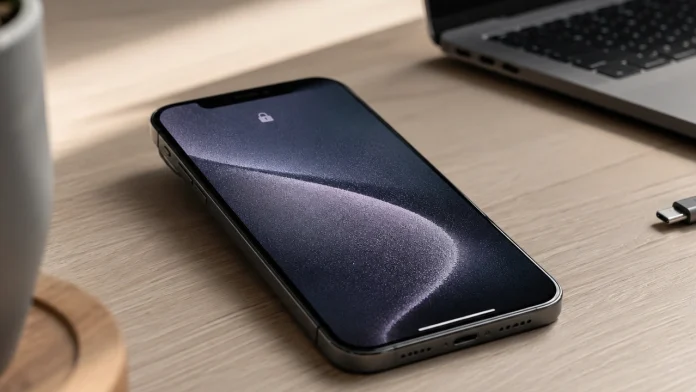
Initializing an iPhone is not just a matter of tapping a scary red button and hoping everything goes smoothly. It is one of those operations we do rarely, but it can become essential in very practical situations: selling your iPhone, giving it to someone else, starting fresh after annoying bugs, preparing the device for repair, or recovering a locked phone.
The problem is that the word “initialize” is often used loosely. Some people want to completely erase the iPhone, while others simply want to reset the settings without losing photos, messages, apps, and personal data. And that difference is huge.
On iPhone, Apple clearly separates two kinds of actions. On one side, there is the reset of specific settings, which restores network settings, keyboard preferences, privacy permissions, or system settings without deleting personal data. On the other side, there is the full erase, which returns the iPhone to the state of a brand-new device, ready to be configured by you or by its next owner.
In my opinion, this distinction prevents 90% of unpleasant surprises. Before touching anything, you need to know exactly why you are doing it.
Initialize or reset an iPhone: the difference matters
In everyday language, “initializing an iPhone” usually means resetting the iPhone to factory settings. Technically, this means erasing all content and settings from the device. After the operation, the iPhone restarts on the initial setup screen, just like when it is turned on for the first time.
But iOS also offers an option called Reset, available from the settings. This lets you reset certain parameters without deleting your personal files. It is useful when an iPhone behaves strangely but does not necessarily need a full wipe.
Here is the difference in simple terms:
| Action | What gets deleted | When to use it |
|---|---|---|
| Reset all settings | System settings, network settings, privacy settings, Apple Pay cards | Software bugs, network issues, unstable iPhone |
| Erase all content and settings | Personal data, apps, local photos, accounts, settings | Sale, gift, trade-in, full fresh start |
| Restore via computer | All content, with iOS reinstalled | Locked iPhone, forgotten passcode, serious software issue |
The rule I always follow is simple: if the iPhone stays with you, start with a light reset. If it is going to someone else, you need to erase it completely.
Before initializing the iPhone: backup is not optional
The backup is that slightly boring step everyone wants to skip. Bad idea. Initializing an iPhone without a backup means risking the loss of photos, conversations, app settings, health data, or documents stored locally.
Apple offers two main methods: iCloud and computer backup.
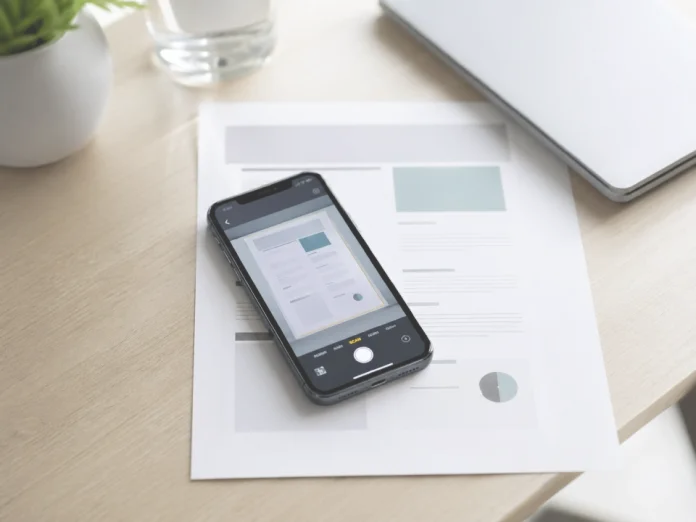
An iCloud backup is the most convenient option. It happens directly from the iPhone, over Wi-Fi, without a cable. You just go to Settings > your name > iCloud > iCloud Backup, then tap Back Up Now. It is practical, but it depends on how much iCloud storage you have available. With the free 5 GB plan, let’s be honest, you often hit the limit very quickly.
A Mac or PC backup is more traditional, but very solid. On recent Macs, it goes through the Finder. On Windows, it goes through the Apple Devices app or, depending on your setup, iTunes. This method has a big advantage: it can create a complete local backup, sometimes faster to restore, especially if you have lots of photos and apps.
My tech blogger take, without sugarcoating it: for a sale or trade-in, an iCloud backup is often enough. For an important iPhone with lots of data, a double backup — iCloud plus computer — is still the most reassuring option.
How to initialize an iPhone from settings
The easiest method is done directly from the iPhone. It is ideal if the device works normally and you know both the unlock code and the Apple Account password associated with it.
The path is:
- Open Settings
- Go to General
- Tap Transfer or Reset iPhone
- Choose Erase All Content and Settings
- Enter the iPhone passcode if requested
- Enter the Apple Account password if needed
- Confirm the erase
The iPhone will then delete local data, disable services linked to the Apple Account, and restart on the setup screen. The process can take a few minutes. Nothing is wrong if the screen stays on the Apple logo with a progress bar for a while.
What I like about recent versions of iOS is that the system guides the user better. Before erasing, the iPhone shows a summary of what will be removed or disabled. It feels less intimidating than before, even though the final result is still radical: the device is wiped.
What to do with the eSIM before erasing
The eSIM deserves special attention. Many users forget about it and then end up having to call their carrier at the worst possible time.
During the erase process, the iPhone may ask whether you want to keep or delete the eSIM. If you are initializing the iPhone for yourself, for example to start fresh before restoring a backup, keeping the eSIM may make sense. If you are selling or giving away the device, you obviously need to delete it.
And here is an important detail: a deleted eSIM is not always recovered as easily as a physical SIM card you can simply put back in. Depending on the carrier, you may need to generate a new QR code, go through your customer account, or contact support. It is not dramatic, but it is better to know before tapping too quickly.
Initialize an iPhone before selling it or giving it away
This is probably the most sensitive scenario. When an iPhone changes hands, the goal is not just to remove visible photos. You also need to remove links to your Apple Account, disable Activation Lock, delete Apple Pay cards, and avoid leaving the future owner with an unusable device.
A clean process looks like this:
- Make a complete backup
- Disable iMessage if you are switching to an Android phone
- Sign out of your Apple Account if iOS asks you to
- Erase all content and settings
- Remove the old iPhone from your trusted devices list
- Check that the iPhone shows the setup screen
Activation Lock is an excellent anti-theft system, but it can become a nightmare in a poorly prepared sale. If the iPhone remains linked to your account, the buyer will not be able to activate it properly. That is the kind of detail that turns a smooth transaction into a never-ending message thread.
Once the erase is complete, the iPhone should display the welcome screen. At that point, it is ready to be configured by someone else.
Reset an iPhone without losing your data
Not every bug deserves a full erase. This is actually one of the most common traps: wanting to “format” the iPhone when a simple settings reset would have been enough.

From Settings > General > Transfer or Reset iPhone > Reset, several options are available. The best-known one is Reset All Settings. It resets network settings, privacy settings, location settings, the keyboard dictionary, Apple Pay cards, and several system preferences, but it does not delete photos, videos, messages, or apps.
This is very useful if the iPhone heats up for no clear reason, struggles with Wi-Fi, behaves strangely after an update, or collects small bugs that are hard to identify.
There is also an option to Reset Network Settings. This deletes saved Wi-Fi networks, Wi-Fi passwords, VPN settings, and some cellular settings. It is often the first thing to try when 4G, 5G, Wi-Fi, or Bluetooth becomes unreliable.
I much prefer starting there rather than wiping everything. You keep your data, reduce the risks, and in many cases, it is enough.
Initialize an iPhone with a Mac or PC
When the iPhone no longer responds properly, refuses to erase from settings, or has a deeper software problem, the computer becomes the best option.
On a Mac with macOS Catalina or later, everything happens through the Finder. On Windows, Apple now recommends the Apple Devices app, although iTunes is still used in some cases. The idea is simple: connect the iPhone with a cable, select the device, then choose the restore option.
This method erases the iPhone and installs the latest version of iOS available for that model. It goes deeper than a simple erase from settings because the operating system is reinstalled.
It is especially useful in three situations:
- the iPhone is buggy after an update
- the device is stuck on the Apple logo
- the iPhone needs a clean restore before being configured again
One thing to keep in mind: if Find My iPhone is enabled, you may need to sign out of your Apple Account before restoring the device normally. And after the restore, Activation Lock may ask for the credentials of the account previously linked to the iPhone.
Initialize an iPhone when the passcode is forgotten
The forgotten passcode scenario is more brutal. To regain access to the iPhone, you usually need to reset it. And that operation erases the data on the device.
The method requires recovery mode and a computer. On recent iPhones, you connect the device to a Mac or PC, then use a button combination to bring up the connection-to-computer screen. After that, Finder, Apple Devices, or iTunes offers to restore the iPhone.
On iPhone 8 and later models, the sequence is: quickly press the volume up button, quickly press the volume down button, then hold the side button until the recovery screen appears.
It is not the most pleasant procedure, but it is clear: without the passcode, the iPhone must be erased before it can be used again. The only real safety net is a previous backup.
After initialization: restore or start from scratch
Once the iPhone has been initialized, there are two schools of thought.
The first is to restore a backup. This is the most comfortable route. You recover your apps, settings, messages, photos depending on your iCloud configuration, and the iPhone quickly feels like the one you had before. It is perfect when switching to a new model or when the erase was only meant to solve a temporary issue.

The second is to set up the iPhone as a new device. It takes longer and feels more manual, but it can be much cleaner. If the old system was carrying bugs, messy settings, or useless apps collected over years, starting from scratch can make the phone feel genuinely fresh again.
Personally, I think setting up an iPhone as new every few major life cycles — after years of restoring backup after backup — can improve the overall experience. Not necessarily in raw performance, but in comfort. Fewer useless apps, fewer annoying notifications, fewer forgotten old settings.
Mistakes to avoid before erasing an iPhone
The first mistake is erasing without backing up. It sounds obvious, but it is still the one that hurts the most.
The second is selling an iPhone that is still linked to your Apple Account. Even if it looks erased, a device protected by Activation Lock can block the new user.
The third is forgetting iMessage when switching from iPhone to Android. The possible result: some SMS messages sent by iPhone contacts may continue going through iMessage instead of reaching the new phone properly.
The fourth is deleting an eSIM without checking how to reactivate it. Again, it is not necessarily irreversible, but it can waste time.
Final point: avoid miracle software found randomly online. To initialize an iPhone, Apple’s own tools are enough in the vast majority of cases. When third-party software promises to do everything without a password, without an account, without data loss, and without limitations, I immediately become suspicious. On a device so closely tied to personal security, staying within the official ecosystem is usually the smartest move.
Frequently asked questions
Does initializing an iPhone delete everything?
Yes, if you choose Erase All Content and Settings. This option deletes local data, apps, settings, and disables services linked to the device. It does not, however, delete what is stored in iCloud, such as synced photos, contacts, or some online documents.
Can you reset an iPhone without losing photos?
Yes, as long as you use Reset All Settings and not Erase All Content and Settings. This reset does not delete media files. That said, a backup is still recommended before any important operation.
Should you remove the SIM card before initializing the iPhone?
For a physical SIM card, it is not technically required, but it is recommended before a sale or gift. For an eSIM, you need to choose correctly between keeping it or deleting it depending on the situation.
How long does it take to initialize an iPhone?
Usually, a few minutes are enough. The time depends on the model, the condition of the system, and the amount of data. A restore via computer may take longer, especially if iOS needs to be downloaded.
Can you cancel an initialization after confirming it?
Once the erase has started, you should not count on going back. Data can only be recovered if an iCloud or computer backup exists.
What should you do if the iPhone gets stuck during initialization?
First, wait. Some steps can look slow. If the iPhone remains frozen for a long time, restoring it via computer and recovery mode becomes the most reliable solution.
Final thoughts
Initializing an iPhone looks simple, but it deserves a bit of method. Apple has made the process much clearer than in the old iTunes-only days, and that is a good thing. Today, most cases can be handled directly from settings, with the system guiding the user step by step.
Still, Erase All Content and Settings is not a magic button. It is a clear line between “I am fixing a problem” and “I am starting from zero.” For an iPhone you are keeping, resetting the settings is often enough. For an iPhone you are selling, giving away, or recycling, a full erase is essential.
The best scenario is always the same: clean backup, Apple Account check, attention to the eSIM, then initialization. Not very spectacular, sure, but that is exactly what prevents unpleasant surprises. And in the Apple world, where the iPhone often contains a big part of our digital life, doing things calmly is easily worth the five minutes it takes.

I'm Clémentine Pithon, and as a technology enthusiast, I write articles to guide you through the world of refurbished devices. My goal is simple: to help you make informed choices, understand the products, and get the most out of them every day. Tips, explanations, and practical advice are at the heart of my articles.