


- 1 Why this question comes up so often
- 2 Turning off or force restarting: the nuance that changes everything
- 3 The button method depending on the iPhone model
- 4 Can you really turn off an iPhone without using the touchscreen?
- 5 Using Siri when the touchscreen no longer responds
- 6 AssistiveTouch: useful, but not miraculous
- 7 Voice Control: the cleanest solution if it is already configured
- 8 When the screen does not respond: checks to try before panicking
- 9 What if the buttons no longer work either?
- 10 The case of an iPhone stuck on the Apple logo
- 11 The best approach depending on the problem
- 12 FAQ
- 13 Final thoughts
Why this question comes up so often
Turning off an iPhone seems simple… until the screen stops responding. A drop, an unreliable touchscreen, a poorly applied screen protector, a software bug, an iPhone left in the rain for a few minutes: it only takes a small incident to turn a basic action into a headache.
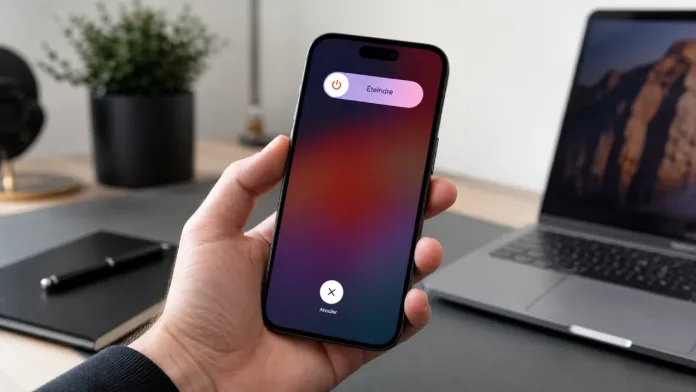
The first thing to understand is that Apple makes a clear distinction between two very different actions: turning off the iPhone, which truly powers down the device, and forcing a restart, which is mainly useful when the iPhone is frozen. In the normal procedure, the iPhone displays a “slide to power off” slider that you need to drag with your finger. On an iPhone X or later, Apple says you need to press and hold a volume button and the side button until this slider appears, then drag it. On older models, the side or top button is enough, but the slider is still required.
This is exactly where things get complicated: if the touchscreen no longer works at all, the classic method is not enough. In that case, you need to use other solutions: force restart, Siri, AssistiveTouch if it was configured beforehand, Voice Control or, in some cases, repair.
Turning off or force restarting: the nuance that changes everything
In everyday language, many people say they want to “turn off the iPhone” when what they actually want is to unfreeze it. That is normal: when the screen is stuck, the priority is not necessarily to cut the power, but to regain control.
A force restart is therefore the most reliable solution when the screen no longer responds. It does not require using the touchscreen. It does not delete data, restore the iPhone or reset the settings. It simply forces iOS to restart properly when the interface is stuck.
On recent iPhones, the sequence has become a small technician’s reflex: quickly press Volume Up, quickly press Volume Down, then hold the side button until the Apple logo appears. Apple recommends this method if the iPhone is not responding and it is not possible to turn it off and back on normally.
In my opinion, this is the first thing to try in 80% of cases. Not because it is magic, but because it is fast, carries no real risk and is perfectly suited to frozen screens. The real trap is releasing the side button too early. You need to wait for the Apple logo, even if the screen stays black for a few seconds.
For the iPhone 8, iPhone X, iPhone 11, iPhone 12, iPhone 13, iPhone 14, iPhone 15, iPhone 16 and newer models, the force restart method is as follows:
- Quickly press Volume Up.
- Quickly press Volume Down.
- Hold the side button.
- Release it only when the Apple logo appears.
For the iPhone 7 and iPhone 7 Plus, the combination is different: you need to hold the side button and the Volume Down button until the Apple logo appears. For the iPhone 6s, first-generation iPhone SE and older models, you need to hold the Home button and the side or top button until the Apple logo appears.
This is a detail worth remembering, because many guides mix up generations. An iPhone 7 is not forced to restart like an iPhone 13, and a first-generation iPhone SE does not behave like a recent iPhone SE.

Can you really turn off an iPhone without using the touchscreen?
The honest answer is: yes, but not always in the way you might imagine.
If the touchscreen is completely unusable, the buttons mainly allow you to force a restart, not to fully shut down the iPhone. For a complete shutdown using the official method, Apple displays a slider that must be dragged. Without touch input, this step blocks the normal procedure.
However, there are two cases where you can work around this problem.
The first involves Siri. On recent versions of iOS, Siri can start a shutdown command, but the iPhone generally asks for confirmation. This can work if Siri is enabled, if your voice is recognized, if the iPhone accepts commands in its current state, and if the confirmation can be validated by voice or through an interaction that is still possible. Apple documents the ways to activate Siri by voice or with the side button, although the shutdown command itself is less prominently highlighted in official support.
The second case involves AssistiveTouch or Voice Control, but only if these features are already accessible or configured. AssistiveTouch can notably restart the device and replace certain button presses with on-screen actions. Apple also explains that this feature can be used to lock the screen, adjust the volume, call Siri, restart the device or replace button presses.
Using Siri when the touchscreen no longer responds
Siri is often the most underestimated solution. If “Hey Siri” is enabled, you can try a command such as:
“Hey Siri, turn off the iPhone”
or
“Hey Siri, restart the iPhone”
In practice, restarting is often more useful than a full shutdown. If the iPhone is simply frozen, a restart can sometimes solve the problem in less than a minute. If the screen is physically broken, Siri obviously will not repair anything, but it can help you avoid waiting for the battery to drain.
The problem is that Siri depends on several conditions: a working microphone, the option being enabled, the language being recognized, the iPhone not being too frozen, and an internet connection in some cases. Apple also reminds users that Siri must be enabled and can be called by voice or via the side button on iPhones with Face ID.
My view is quite clear: Siri is useful when everything is “almost” fine. If the screen is frozen after a software bug, it is worth trying. If the iPhone has been dropped and the display panel is dead, it is better not to waste too much time on random voice commands.
AssistiveTouch: useful, but not miraculous
AssistiveTouch is excellent for people who struggle with physical buttons or certain gestures. The floating button gives access to features normally linked to buttons or gestures. It can also help restart the iPhone from a virtual menu.
But there is an obvious limitation: if the touchscreen no longer responds at all, AssistiveTouch becomes difficult to use, unless the iPhone is controlled with an external device. Apple explains that it is possible to use a mouse, trackpad or Bluetooth assistive device with AssistiveTouch to control an on-screen pointer.
In some cases, connecting a compatible mouse via a USB-C or Lightning adapter can save the day. It is not the most elegant solution, and not everyone has the adapter on hand, but on an iPhone whose display still works, it can allow you to click the slider, confirm a command or navigate through the settings.
Voice Control: the cleanest solution if it is already configured
iOS Voice Control is one of the iPhone’s most powerful accessibility features. When enabled, it allows you to perform commands by speaking, as if you were touching the screen. Apple explains, for example, that you can ask to show names or numbers on the screen in order to interact with visible elements.
In the context of an iPhone without touch input, this is very interesting. If Voice Control is already active, it can allow you to open menus, virtually tap buttons, lock the screen or navigate without placing a finger on the display.

The problem, once again, is anticipation. Activating and configuring Voice Control when the touchscreen is already dead becomes complicated. This feature makes the most sense on an iPhone used by someone who already needs alternatives to touch input in daily life.
When the screen does not respond: checks to try before panicking
Not all touchscreen problems come from a broken display panel. Apple recommends restarting the iPhone, making sure the screen is clean and free of water or debris, unplugging Lightning or USB-C accessories, then removing the case or screen protector if necessary. If the screen works after removing an accessory, the problem may come from the cable, charger or connected accessory.
It is very down-to-earth advice, but fairly accurate. I have already seen screens become inaccurate simply because of a poorly applied glass protector or the edge of a case pressing slightly on the display. It is not common, but it happens. Moisture is even more treacherous: the screen turns on, the iPhone seems alive, but gestures go in every direction.
In that case, a force restart can unblock the software side. If the touchscreen remains silent after cleaning, removing accessories and restarting, the diagnosis becomes much less reassuring.
Here, we enter the most frustrating scenario: no touch input, a stuck side button, unusable volume buttons. Without buttons and without touch input, local options become very limited.
Apple says that if a button or switch does not work, you should notably remove any case or film that may be blocking it, then consider repair if the problem persists.
In this case, waiting for the battery to drain may sometimes be the only way to obtain a shutdown, but it is not a real technical solution. If the iPhone contains important data, if it is heating up, if it keeps restarting in a loop or if it displays a recovery screen, it is better to use a Mac, PC or Apple Support. The recovery screen may require reinstalling iOS via Finder, the Apple Devices app or iTunes, depending on the computer being used.
The case of an iPhone stuck on the Apple logo
If the goal is to turn off the iPhone because it remains stuck on the Apple logo, you should not confuse forced shutdown, force restart and recovery mode. When the Apple logo stays on the screen for a long time or the progress bar no longer moves, Apple recommends connecting the iPhone to a computer and using the recovery procedure adapted to the model.
This is the kind of situation where I would avoid repeating the same manipulations for an hour. One force restart, yes. Two attempts, why not. Ten attempts with questionable cables and a battery at 4%, no. The iPhone may need a system update via computer, or even a restore if the system is truly damaged.
The best approach depending on the problem
If the screen is frozen but intact, the best option remains a force restart using the buttons. It is quick and requires no touchscreen input.
If the touchscreen is dead but Siri responds, a voice command may allow you to request a shutdown or restart. It is not the most reliable route, but it is worth testing.
If the screen still displays elements correctly and a pointing device can be connected, a mouse or trackpad via AssistiveTouch can give access to on-screen commands.
If the screen no longer responds after a drop, moisture exposure or visible pressure under the display, turning it off is only a temporary fix. The real issue becomes repair, especially if Face ID, the buttons or the display also show signs of weakness.
FAQ
Can you turn off an iPhone using only the buttons?
On modern iPhones, the buttons can display the power-off slider, but you normally need to drag it on the screen. Without touch input, the buttons are mainly used to force a restart.
Does a force restart erase data?
No. A force restart does not delete photos, apps, messages or settings. It simply restarts the system when the iPhone no longer responds.

What is the combination for an iPhone 13, 14, 15 or 16?
Quickly press Volume Up, quickly press Volume Down, then hold the side button until the Apple logo appears.
What is the combination for an iPhone 7?
Hold the side button and the Volume Down button until the Apple logo appears.
Can Siri really turn off the iPhone?
Yes, on recent versions of iOS, Siri can start a shutdown or restart command in some cases. However, how it works depends on Siri settings, the state of the iPhone and the confirmation requested.
What should you do if the screen stays black?
You should try the force restart method adapted to the model, then charge the iPhone. If the screen remains black despite charging and restarting, a repair may be necessary.
Does AssistiveTouch work without touch input?
Not directly if the screen no longer responds at all. It becomes useful with an external pointer, a compatible mouse or if the touchscreen still works partially.
Final thoughts
Turning off an iPhone without touch input is not as simple as it sounds, because iOS is built around visual confirmation: the famous slider you need to drag. This is reassuring in normal use, but less practical when the display no longer responds.
The truly solid method remains the force restart. It does not power off the iPhone like a classic shutdown, but it solves most software freezes without touching the screen. Siri, AssistiveTouch, Voice Control and external pointers are good alternatives, but they depend heavily on the configuration already in place.
The core of the matter is ultimately quite simple: if the iPhone is frozen, try a force restart. If the touchscreen is physically dead, think repair rather than tinkering. And if the device contains important data, every manipulation should remain reasonable: the goal is to regain control, not to make an already annoying failure even worse.

Hi, I'm Giada! I've always been passionate about technology and smartphones, and today at CertiDeal I take care of both content creation as an author and digital marketing growth. Through my articles, I share guides, useful tips, technical specs, and the latest news from the world of tech and smartphones, with content that's always up-to-date and easy to read. Enjoy reading!