


- 1 Why turning off an iPhone 15 is no longer as instinctive as before
- 2 The main method to turn off an iPhone 15 with the buttons
- 3 Turning off the iPhone 15 from Settings
- 4 Turning off the iPhone 15 from Control Center
- 5 Turning off, locking, restarting: three different gestures
- 6 What to do if the iPhone 15 is frozen and will not turn off
- 7 The case of iPhone 15 Pro models with the Action button
- 8 Should you turn off your iPhone 15 regularly?
- 9 The most common mistakes
- 10 FAQ
- 11 Final thoughts
Turning off an iPhone 15 should be an obvious gesture. And yet, it is exactly the kind of small action that becomes less intuitive as Apple simplifies the design of its phones. There is no Home button anymore, the side button is used to lock the screen, call up Siri, pay with Apple Pay, confirm actions… and, somewhere in all of that, turn off the device.
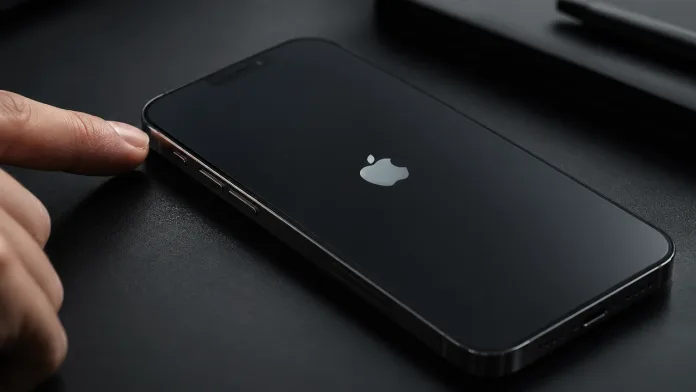
On the iPhone 15, iPhone 15 Plus, iPhone 15 Pro, and iPhone 15 Pro Max, the main method is to hold down the side button and one of the volume buttons until the power-off slider appears. Apple also indicates two other possible methods: using Settings or, on recent versions of iOS, the Control Center.
This detail deserves a clear explanation, because there is a real difference between putting the screen to sleep, turning off the iPhone, restarting it, and forcing a restart when it no longer responds. In everyday use, these actions can feel similar. Technically, they do not mean the same thing.
Why turning off an iPhone 15 is no longer as instinctive as before
For years, on many smartphones, all you had to do was press and hold the power button. On a modern iPhone, this button is more commonly called the side button, and its role has changed over time. On the iPhone 15, it is used to lock the screen, wake the phone, trigger certain system confirmations, and interact with Siri depending on the settings enabled.
That is where the confusion begins. Many users press and hold the side button expecting to see the “Power Off” option appear. Instead, they may trigger Siri or another function. This is not a bug; it is the normal behavior of iOS.
Apple classifies the iPhone 15 among models without a Home button, with a side button on the right and volume buttons on the left. On the iPhone 15 Pro models, the Action button also replaces the old Ring/Silent switch, but this does not change the power-off procedure.
In my opinion, Apple has gained consistency in terms of design, but has lost a bit of clarity when it comes to basic gestures. The iPhone 15 is beautiful in its hardware simplicity, except that this simplicity sometimes requires knowing the right button combinations.
The most direct method is still the one using the physical buttons.
To turn off an iPhone 15, you need to hold down the side button and one of the two volume buttons. It does not matter whether it is the volume up or volume down button. After about a second, the screen displays several options, including the Power Off slider. You then simply need to drag this slider to the right to start shutting down the device.
The full procedure is therefore as follows:

- Hold down the side button and one volume button at the same time.
- Wait for the Power Off slider to appear.
- Drag the slider to the right.
- Wait for the screen to turn black.
Apple specifies that, to restart an iPhone X or later model, you need to drag the slider and then wait about 30 seconds while the device turns off. To turn it back on, you then need to hold the side button until the Apple logo appears.
This waiting time matters. If the screen turns black immediately, it does not necessarily mean the iPhone is ready to be turned back on in a split second. iOS closes running processes, cuts active connections, and shuts down the system properly. It is not spectacular, but that is exactly what you expect from a clean shutdown.
Turning off the iPhone 15 from Settings
The second method is more discreet, but it is sometimes more comfortable. It does not require any button combination.
You need to open Settings, go to General, scroll all the way down the page, then tap Shut Down. The same power-off slider appears on the screen. Once the slider is dragged to the right, the iPhone turns off normally. Apple documents this method in the iPhone user guide.
This option has two advantages. First, it helps avoid handling mistakes, especially if a case makes the buttons a little stiff. Second, it allows you to turn off the iPhone even when the side button is not working properly, as long as the touchscreen still responds.
It is also a method I find more “clean” for people who rarely use button combinations. It feels more like a classic software action: you go into Settings, scroll down, and turn the phone off. There is no need to guess whether you are pressing long enough or using the right button.
Turning off the iPhone 15 from Control Center
Apple also offers a way to turn off the iPhone from the Control Center on recent versions of iOS. The logic is simple: open Control Center, press and hold the power icon located in the upper-right corner, then drag the slider to turn off the iPhone.
This shortcut is interesting because it brings the iPhone closer to what we know on computers: a visible power button in a system area. It is quite practical, but you need to know it exists. Apple does not always highlight it as much as the button combination.
On the iPhone 15, Control Center is accessed from the upper-right corner of the screen. The gesture may seem ordinary, but it changes everything for those who want to avoid using the physical buttons. It is also a good example of how iOS is evolving: more and more long-standing phone functions are moving to software controls.
Turning off, locking, restarting: three different gestures
One of the most common points of confusion comes from the side button. Pressing it once does not turn off the iPhone 15. It locks the screen or puts it to sleep. The phone remains on, receives notifications, and continues to manage network connections, alarms, calls, and background processes.
Turning off the iPhone is different. The system shuts down completely. The screen turns black, connections are cut, and notifications no longer arrive until the device is turned back on. This can be useful before a long trip, when you want to save battery, or when the iPhone needs a real restart after behaving strangely.
Restarting, in everyday language, means turning the iPhone off and then back on. Apple actually describes this procedure as shutting down the device and then turning it back on with the side button.
This distinction is important because simply locking the screen almost never fixes a software issue. If an app behaves oddly, if Bluetooth struggles to connect, if CarPlay refuses to work, or if the iPhone feels a little slow, a real restart often makes more sense than just putting the screen to sleep.
What to do if the iPhone 15 is frozen and will not turn off
There is one special case: the iPhone 15 no longer responds. The screen is frozen, the touchscreen does not work, the power-off slider does not appear, or the device is stuck in an app. In this situation, we are no longer talking about a normal shutdown, but about a force restart.
The sequence to use is precise:

- Briefly press the volume up button.
- Briefly press the volume down button.
- Press and hold the side button.
- Release the button when the Apple logo appears.
Apple describes this method for iPhones that do not respond and cannot be turned off and on again normally.
A force restart should not become a habit for turning off the iPhone every night. It is more of a troubleshooting procedure. It is meant for when the phone is frozen, not when everything is working normally.
If the iPhone does not turn back on, Apple recommends charging it for a sufficient amount of time before trying again. In some cases, the Apple logo may take more than 10 seconds to appear during a force restart attempt.
The iPhone 15 Pro and iPhone 15 Pro Max introduce an Action button, located on the left side, in place of the traditional Ring/Silent switch. This button can launch the camera, turn on the flashlight, trigger a shortcut, or manage other functions depending on the chosen configuration.
It is not used to turn off the iPhone.
This is worth clarifying, because the Action button naturally draws attention. Its name gives the impression that it could do everything. In reality, to turn off an iPhone 15 Pro, the procedure remains the same as on the standard iPhone 15: side button + volume button, or Settings, or Control Center if the iOS version allows it. Apple indicates that the Action button is present on iPhone 15 Pro models and can be customized, but the side button remains the one associated with shutting down and locking the device.
From an ergonomic point of view, this makes sense. The Action button is designed as a shortcut, not as a critical system command. But Apple could perhaps have made this separation clearer in the interface, especially for users moving from an older model with a Home button to a recent iPhone.
Should you turn off your iPhone 15 regularly?
An iPhone 15 does not need to be turned off every day. iOS is designed to remain active for long periods, manage memory automatically, and suspend apps when needed. The time when you had to constantly restart your phone to “clean” the system is largely behind us.
That said, turning off or restarting the iPhone is still useful from time to time. After an update, strange behavior, a sudden drop in battery life, or an unstable network connection, a restart can help reset things. It is not magic, but it is often the first sensible step before digging deeper into the settings.
There is also the battery aspect. Turning off the iPhone for several hours helps avoid residual power consumption, even if it is generally low while the phone is asleep. For one full night, the gain is not always spectacular. For several days without use, turning it off becomes more relevant.
Personally, I am not in favor of mandatory daily shutdowns. The iPhone 15 is designed to remain available: notifications, location, calls, alarms, connected devices, iCloud backups. Turning it off every night removes part of that continuity. However, knowing how to turn it off properly is essential. The day the phone freezes, an app blocks everything, or the battery drains for no obvious reason, this small bit of knowledge prevents panic.
The most common mistakes
The first mistake is holding only the side button. On the iPhone 15, this gesture is not enough to display the power-off slider in most configurations. You need to combine it with a volume button.
The second mistake is confusing shutdown with locking. If the screen turns black after a brief press on the side button, the iPhone is not turned off. It is simply asleep.
The third mistake is using a force restart as the normal method. It is tempting, because the sequence eventually shows the Apple logo, but it is not the most elegant route when the phone is responding correctly.
The final mistake concerns the waiting time. After dragging the slider, the iPhone can take several seconds to shut down completely. Turning it back on too quickly, pressing the buttons several times, or thinking the operation failed can simply create confusion.

FAQ
How do you turn off an iPhone 15 with the buttons?
You need to hold the side button and one of the volume buttons until the Power Off slider appears, then drag this slider to the right.
Can you turn off an iPhone 15 without using the buttons?
Yes. You can go to Settings > General > Shut Down, then drag the power-off slider. Apple also offers a shutdown option through Control Center on recent versions of iOS.
Why does the side button alone not turn off the iPhone 15?
Because the side button is also used to lock the screen, wake the iPhone, and trigger certain system functions. To display the power-off slider, you need to use it with a volume button.
How do you turn an iPhone 15 back on after turning it off?
You need to hold the side button, located on the right side of the iPhone, until the Apple logo appears.
How do you turn off an iPhone 15 Pro?
The method is identical to the iPhone 15: side button + volume button, then the Power Off slider. The Action button on Pro models does not replace this command.
What should you do if the iPhone 15 is frozen?
You should try a force restart: briefly press volume up, briefly press volume down, then hold the side button until the Apple logo appears.
Does turning off the iPhone 15 erase data?
No. A normal shutdown does not delete photos, messages, apps, or settings. It simply stops the system until the next time the device is turned on.
Should you turn off your iPhone 15 every night?
It is not necessary. An occasional restart can be useful in case of a bug or slowdown, but iOS is designed to stay on for a long time without any particular intervention.
Final thoughts
Turning off an iPhone 15 is not complicated, but Apple has made the gesture less obvious than it used to be. The right reflex is to remember the combination side button + volume button. It is the fastest method and the one that works across the entire iPhone 15 range.
The methods through Settings and Control Center are just as interesting, especially for those who prefer to avoid physical button combinations. They also show a clear trend: the iPhone is becoming increasingly software-driven, even for actions as basic as powering off.
My opinion is fairly simple: Apple could explain these gestures better during the initial setup. We are talking about a fundamental action, not a hidden feature for advanced users. That said, once the mechanism is understood, it becomes natural. And that is probably one of the iPhone 15’s greatest strengths: even when a command seems strange at first, it often ends up becoming part of the routine.

Hi, I'm Giada! I've always been passionate about technology and smartphones, and today at CertiDeal I take care of both content creation as an author and digital marketing growth. Through my articles, I share guides, useful tips, technical specs, and the latest news from the world of tech and smartphones, with content that's always up-to-date and easy to read. Enjoy reading!