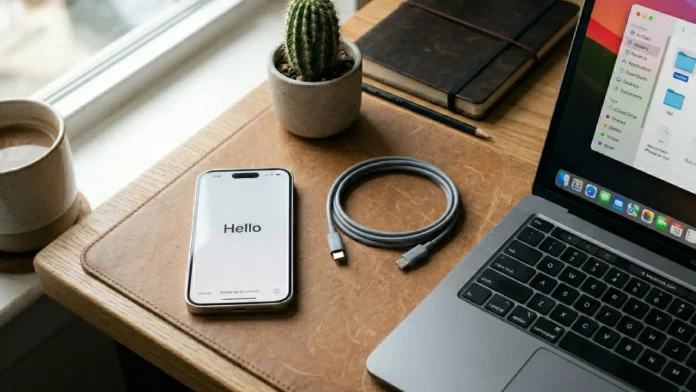
Switching iPhones is usually a weird mix of excitement and mild panic. Excitement: better camera, brighter screen, improved battery. Panic: your Photos library—years of memories, Live Photos, 4K videos, “don’t you dare lose this” albums—moving to a new device without something going sideways.
The good news: Apple gives you several reliable ways to transfer photos from iPhone to iPhone. The bad news: if you pick the wrong method (or mash a few together randomly), you can end up with duplicates, endless syncing, or a library that looks empty… while it’s quietly downloading in the background.
Below are the options that matter, when each makes sense, the traps people fall into, and the cleanest choice depending on your situation.
- 1 Pick the right method in 30 seconds
- 2 1) Direct iPhone-to-iPhone transfer (Quick Start): the “no drama” option
- 3 2) iCloud Photos: the “I want my photos everywhere” approach
- 4 3) iCloud Backup + temporary free storage: the underrated lifesaver
- 5 4) AirDrop: best for selective transfers (and fast wins)
- 6 5) iCloud Shared Photo Library: brilliant… but not really for migration
- 7 6) Using a Mac or PC: the reliable Plan B (and sometimes faster than you’d expect)
- 8 7) Export to external storage and re-import: the “archivist mode”
- 9 Common mistakes that make it feel like the transfer “failed”
- 10 Checklist before you erase or sell the old iPhone
- 11 FAQ
- 12 Final thoughts
Pick the right method in 30 seconds
- You’re setting up a brand-new iPhone and want everything moved over (photos included) → Direct iPhone-to-iPhone transfer (Quick Start).
- You already use iCloud Photos (or want a cable-free setup) → iCloud Photos on both iPhones, same Apple Account.
- You don’t have enough iCloud storage, but you just bought a new iPhone → iCloud Backup + temporary free storage for migration (way more useful than people think).
- You only want to move a few albums / a smaller batch of photos → AirDrop.
- You want a solid “Plan B” with a computer → Mac/PC (Photos + Finder/iTunes/Apple Devices app).
- You want to archive originals to an external drive (and possibly re-import later) → Import/Export using external storage.
1) Direct iPhone-to-iPhone transfer (Quick Start): the “no drama” option
If your new iPhone is still on the “Hello” screen, you’re in the best-case scenario. Quick Start is often the simplest route: keep the two iPhones close, follow the setup wizard, and choose the direct transfer option.
Why it’s often the best choice
- It moves photos, videos, albums, settings, apps—basically your whole digital life.
- You don’t have to overthink iCloud vs cables vs manual importing.
- It’s pretty reliable, as long as Wi-Fi/Bluetooth and battery behave.
Before you start
- Turn on Wi-Fi and Bluetooth on the old iPhone and ideally plug both devices into power. (This is the difference between “smooth” and “why is this stuck?”)
- Keep them close together the whole time.
- If the Quick Start prompt disappears, a restart on both devices often brings it back.
The steps (plain English)
- Turn on the new iPhone and place it near the old one.
- Pair them using the on-screen animation and follow the prompts.
- At “Apps & Data,” choose Transfer from iPhone / direct transfer.
The thing that breaks it
During the transfer, try not to use the old iPhone. People sabotage Quick Start constantly by opening apps, answering calls, walking away from Wi-Fi… and then wondering why the transfer starts hiccuping.
2) iCloud Photos: the “I want my photos everywhere” approach
If you want your photos to follow you not only during upgrades but all year long, iCloud Photos is the cleanest system. Important: it’s not a one-time copy. It’s sync—one library mirrored across your Apple devices using the same Apple Account.
When it’s ideal
- You have (or are fine getting) enough iCloud storage.
- You want the new iPhone to repopulate automatically, no cable needed.
- You use iPad/Mac too and want continuity.
Turn it on (both iPhones)
On each iPhone: Settings > your name > iCloud > Photos > Sync this iPhone (wording varies slightly by iOS version, but that’s the path).
You’ll also see options like:
- Optimize iPhone Storage (keeps lighter versions locally if space is tight)
- Download and Keep Originals (stores full-res files locally—fast way to fill storage)
The classic panic: “my photos aren’t on the new iPhone”
With iCloud Photos, the library can appear in waves: thumbnails first, then full originals. Sometimes it looks empty even though it’s working in the background. The boring-but-real fix: Wi-Fi + charging + time.
One crucial detail
Because it’s sync: if you delete a photo on one device, it disappears everywhere once syncing catches up. Many people think iCloud Photos is a backup vault. It isn’t. It’s a shared, living library. (And yes, “Recently Deleted” helps—just don’t treat it like permanent insurance.)
3) iCloud Backup + temporary free storage: the underrated lifesaver
You’ve got the default 5GB iCloud plan and a 200GB photo library, so you assume iCloud is off the table. Not always.
Apple offers temporary iCloud storage for device-to-device migration when you buy a new iPhone, so you can create a backup even if you don’t have enough space. It’s an official feature built for this exact moment.
How it works
- You create a temporary iCloud backup from the old iPhone.
- You set up the new iPhone and restore from that backup.
- There’s a time window (Apple mentions 21 days to restore, with options to request extra time in some cases).
Practical steps
- Update the old iPhone to a recent iOS version if possible.
- Go to Settings > General > Transfer or Reset iPhone.
- Start the process—if you’re short on space, iOS offers the temporary storage.
- On the new iPhone, choose restore from iCloud backup under “Apps & Data.”
Why I like it
It solves a real-world problem: migrating without paying for a subscription “just for a week.” It’s the kind of feature you only learn about after you needed it… unless someone tells you early.
4) AirDrop: best for selective transfers (and fast wins)
AirDrop is the Swiss Army knife. Want to send a few hundred photos from a weekend trip, a specific album, or just your “best shots”? AirDrop is often the quickest route.
How to send lots of photos at once
In Photos:
- Select multiple photos (batch selection is easy).
- Tap Share → AirDrop → choose the new iPhone.
- Accept on the new iPhone.
If it doesn’t work
It’s usually an AirDrop visibility setting (Receiving Off / Contacts Only / Everyone) or a proximity issue. Temporarily setting AirDrop to “Everyone” often fixes stubborn cases.
What I wouldn’t do
AirDropping an entire life-sized library is pain. Too many transfers, interruptions, heat, and frustration. For a full move: Quick Start, iCloud Photos, or backups are the grown-up choices.
iCloud Shared Photo Library lets you share a dedicated library with up to five people, where everyone can contribute and edit. It’s great for families and couples.
When it makes sense
- You want one shared place for “our photos” (vacations, events, kids).
- You’re tired of “send me those pics” and duplicate albums.
When it’s not the right tool
If your goal is purely “move my photos to my new iPhone,” Shared Library is overkill. It’s designed for ongoing sharing, not a one-time transfer.
6) Using a Mac or PC: the reliable Plan B (and sometimes faster than you’d expect)
If you want control—or if your Wi-Fi has a personality disorder—using a computer remains a solid option.
Import from the old iPhone to a computer
You can transfer photos and videos to a Mac or PC via USB cable: Photos app on Mac, and Apple-supported options on Windows.
Then get them onto the new iPhone
Common paths:
- Restore a computer backup (Finder on modern macOS; iTunes/Apple Devices app on Windows depending on your setup). It’s a full-device restore, not “photos only,” but it’s reliable.
- Or route them through iCloud (upload then sync) if you prefer cloud afterward.
Yes, it’s “classic.” But when cloud syncing drags, the cable is comforting in a very practical way.
7) Export to external storage and re-import: the “archivist mode”
iOS supports importing and exporting photos/videos to external storage (drives, memory cards) connected to your iPhone. This is useful if you want an offline archive or you deal with heavy video files.
It’s not the simplest path for iPhone → iPhone, but if you like owning your own archives and keeping originals outside any cloud, it’s a serious option.
Common mistakes that make it feel like the transfer “failed”
You’re not signed into the same Apple Account
It sounds obvious, but it’s a big one. iCloud Photos and iCloud restores are tied to your Apple Account.
Mixing up “backup” and “sync”
- iCloud Photos syncs.
- iCloud Backup saves a snapshot for restoring a device.
Different tools, different behavior. Confusing them causes most upgrade chaos.
“Optimize Storage” makes it look like originals are missing
If Optimize Storage is enabled, full-res originals may live in iCloud until you open them or space allows local storage. They aren’t gone—just managed quietly.
Checklist before you erase or sell the old iPhone
- Open Photos on the new iPhone and check:
- key albums,
- recent photos,
- and a few large videos (they’re often the last to finish).
- If using iCloud Photos, leave the new iPhone on Wi-Fi and charging until things settle.
- Don’t wipe the old phone too early. Migration mistakes are expensive in memories.
FAQ
What’s the easiest way to transfer all photos to a new iPhone?
If the new iPhone hasn’t been set up yet, Quick Start (direct iPhone-to-iPhone transfer) is usually the simplest.
I already set up the new iPhone. Can I still do the direct transfer?
Direct transfer is primarily designed for the initial setup. To use it that way, you’ll typically need to erase the new iPhone and start the setup again.
Does iCloud Photos copy photos or sync them?
It syncs them—one shared library across all devices on the same Apple Account.
I don’t have enough iCloud storage. How can I transfer without paying?
If you just bought a new iPhone, Apple may provide temporary iCloud storage to create a migration backup.
How long does temporary iCloud storage last?
Apple mentions a 21-day window to restore the temporary backup, with possible extensions in some cases.
Can AirDrop transfer an entire photo library?
Technically yes, but it’s not the best approach for large libraries. For a full move, Quick Start, iCloud Photos, or backups are better.
My photos don’t show up immediately with iCloud Photos. Is that normal?
Yes. Thumbnails may appear first, then originals download later. Keep the iPhone on Wi-Fi and charging.
Can I use a Mac or PC to transfer photos?
Yes. You can import to a computer via USB and then restore/sync using your preferred workflow.
Is iCloud Shared Photo Library a good way to “transfer” photos?
It’s mainly for ongoing shared ownership of photos among people, not a classic one-time migration.
Final thoughts
If I’m giving you the “friend at the café” version: pick the boring method, because boring is usually reliable. Quick Start is my default recommendation for upgrading—fewer moving parts, fewer weird surprises, and the new iPhone feels “like yours” immediately. iCloud Photos is excellent if you accept its philosophy: it’s one living library, not a separate vault. And temporary iCloud storage is quietly one of Apple’s best practical ideas here—under-discussed, but perfect for people who don’t want to pay just to move phones once.
The goal isn’t to use the fanciest method. It’s to open Photos on your new iPhone and see the same story you had before—no gaps, no panic.
Check all our iPhone tips!